
Creating Illustrated Storybooks in Google Gemini Apps
Creating Illustrated Storybooks in Google Gemini Apps: A Complete Guide
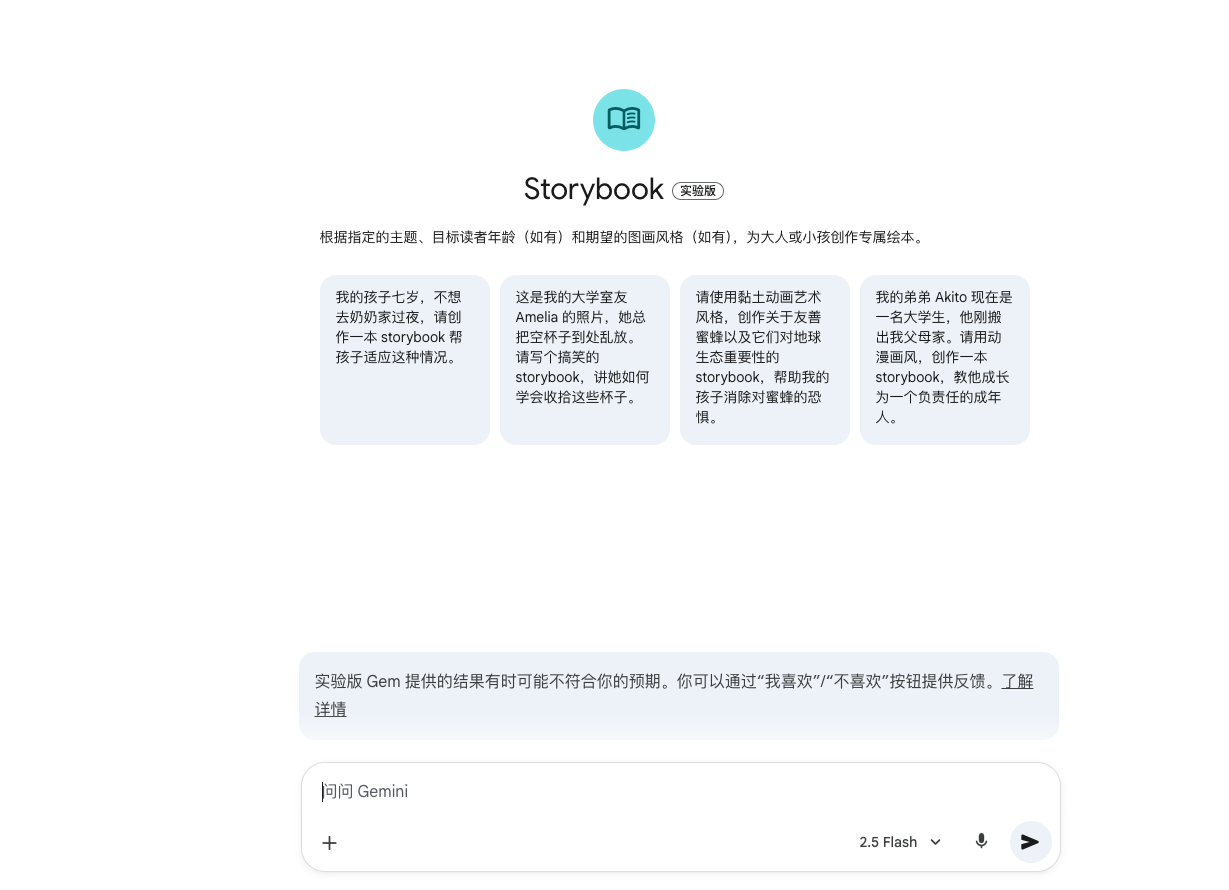
Google Gemini Apps offer a powerful feature that allows you to quickly create a unique, personalized storybook with illustrations, based on a text prompt or your own photos. Once the storybook is generated, you also have the option to have Gemini read the story aloud.
Before You Start
- Age Restriction: This feature is currently only available to users 18 years and older.
- Sign-in Requirement: You must be signed in to Gemini Apps (
gemini.google.com) to use this feature.
How to Start Creating Your Storybook
You can initiate your storybook creation in Gemini Apps using one of the following three methods:
Method 1: Use the "Storybook" Gem (Recommended)
- Go to
gemini.google.com. - On the left sidebar, under "Gems," click Storybook.
- Tip: If you don't see "Storybook," click "Explore Gems" to find the complete list.
- In the text box, enter a prompt detailing the story you want to generate.
- Optional: You can click Add files to upload your own photos or files for Gemini to use in the story creation.
- Click Submit. Your storybook will be generated and open in the panel on the right.
Method 2: Start with a Text Prompt in a Chat
In the text box of any new chat, start your prompt using the following English format:
Create a storybook about [Your desired topic](e.g.,Create a storybook about a brave little cat.)
Method 3: Start by Uploading Photos
- In the text box, click Add files.
- Select the photo(s) you want Gemini to use to create the storybook.
- Below the text box, click Create a storybook.
Storybook Interaction and Editing Features
Storybooks typically take 1 to 2 minutes to create and usually consist of 10 to 12 pages.
- Reading and Full Screen: Click the Full screen button at the top right of the storybook for a larger view. You can turn pages by clicking the left or right side of the book or using the navigation arrows.
- Listen to the Story: Click the Listen button at the top to hear an audio version of the story. You can also click the settings icon next to it to change the reading voice.
- Modification and Regeneration: If you wish to make changes to the story, simply tell Gemini what changes you want in the left-hand text box (e.g., "Please change the main character to a small dog"), and Gemini will create a new version.
- Version History: You can view and switch between your saved story versions by clicking Previous Version or Next Version at the top.
Share, Print, and Download
- Share a Link: At the top of the storybook, click Share, then select Share. Copy the generated
g.co/gemini/sharepublic link to share it with others. - Print or Save as PDF: Click Share, then select Print. In your print options, you can choose to either print the storybook or select "Save as PDF" to download it to your device.
A Quick Note on Availability
Currently, the Gemini Storybook feature may still be in beta testing (internal testing) or gradually rolling out. If you are unable to access or use this feature on Gemini, we encourage you to try a dedicated alternative:
- Visit
www.genstory.app- We offer more extensive content, including story generation with over 50 pages, which is significantly more powerful than the 10-page limit often seen in Gemini Storybook. We also provide a wealth of other robust features for creators.
www.genstory.app
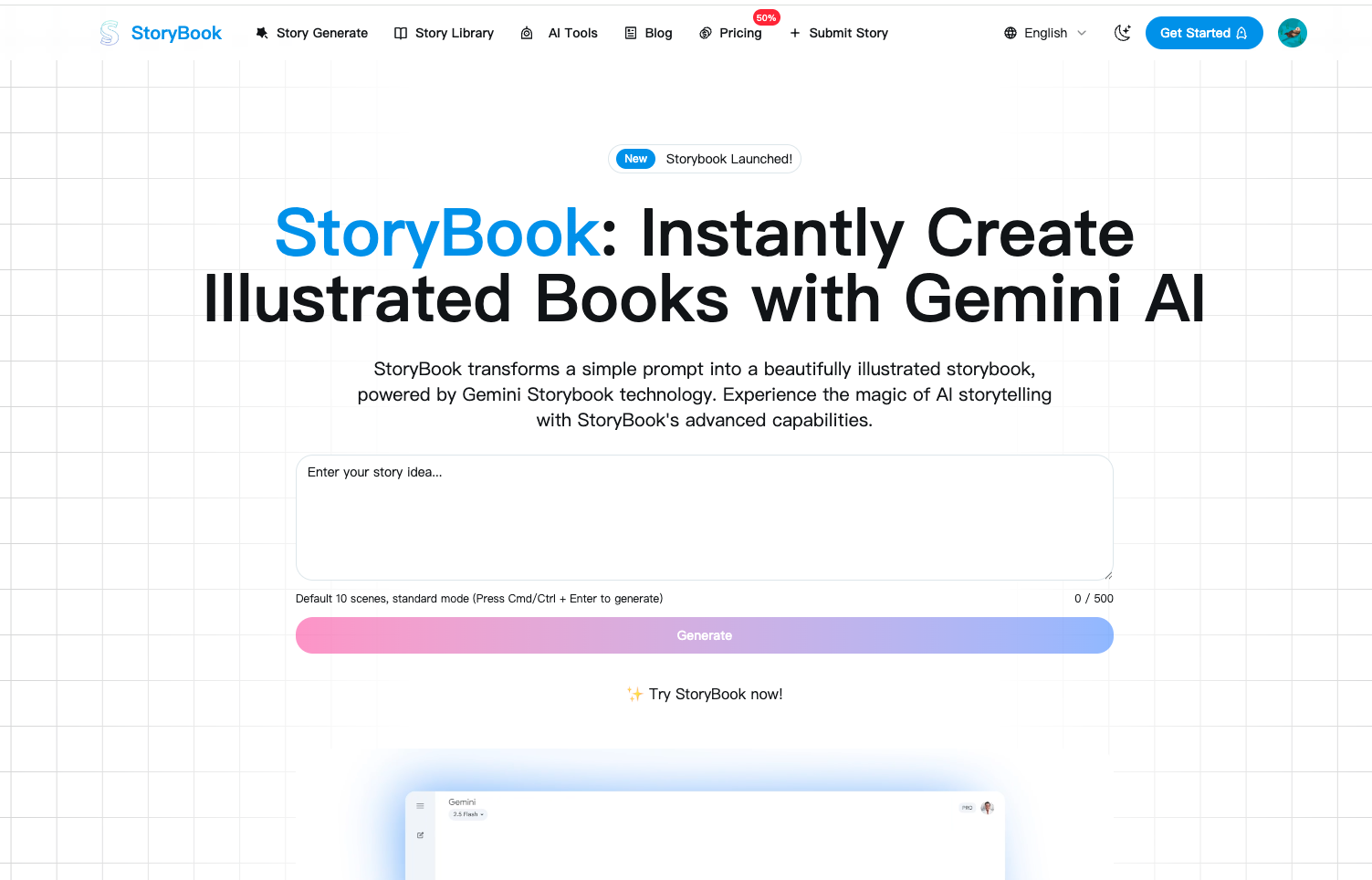
- We offer more extensive content, including story generation with over 50 pages, which is significantly more powerful than the 10-page limit often seen in Gemini Storybook. We also provide a wealth of other robust features for creators.
www.genstory.app